
GitLab Pages with Sphinx
Last updated on 2025-03-18 | Edit this page
Estimated time: 0 minutes
Overview
Questions
- How do I publish web pages through GitLab and Sphinx?
Objectives
- Publish reStructuredText files as HTML on the web with GitHub Pages
Sphinx is a tool to generate webpages or PDF, mainly designed to create a project documentation. It was originally created for the Python documentation, but it has excellent facilities for the documentation of software projects in a range of languages. Polyglot documentation systems might be very useful in case your project increases in complexity or number of collaborators, so take a note about this.
In this chapter of the lesson we will use Python programming language. Even if this is not strictly necessary, we suggest you to familiarise with Python - as explaining it falls outside the purpose of this lesson. You can choose to do so by going through The Carpentries lesson Programming with Python.
Exercise: Documentation
In a group, have each member open one of the following packages’ documentation
Discuss what the common components are, what is helpful about these documentation sites, how they address the general concepts on documentation, how they’re similar and how they’re different.
While Jekyll converts Markdown files (.md) into HTML,
Sphinx converts reStructureText files (.rts). While these
two formats might seem very similar at a first glance, they were created
for two different purposes: Markdown to write for the web,
reStructuredText to write documentation. This
blog post provides more insights about what this means in practice,
the most important point that we would like to highlight in this context
is that reStructuredText is well-suited for the conversion to PDF too.
This makes it a useful tool also for the development of documents you
may need both online and in paper copies, for example training materials
or a meeting agenda.
Sphinx quickstart
In sake of clarity, the next steps of this chapter will only focus on Sphinx files that are relevant for the HTML files generation. However, by installing Sphinx locally you can run the quickstart command to init a basic Sphinx project. We highly recommend this option if you would like to further your understanding of how to document with Sphinx. To this aim, we report here the necessary steps.
Your system probably has Sphinx already installed. Check if so by typing in your terminal:
If it isn’t, you will be able to installing by typing:
Or check more detailed installation instructions here. Once Sphinx is installed, we can run the quickstart command to get an overview of the minimal set of files that are necessary to build the documentation. The following command will create an empty repository and run this command there:
BASH
mkdir sphinx-quickstart-test
cd sphinx-quickstart-test
sphinx-quickstart
...
Separate source and build directories (y/n) [n]:
...
Project name: My project
Author name(s): <Your name>
Project release []:
...
Project language [en]:
Several documents will be generated. Here an overview:
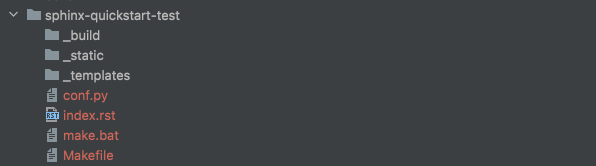
The files that are relevant to us in this context are the
index.rst file - that is the equivalent of our
index.md file in the example with Jekyll - and the
conf.py file. This is why the lesson goes through them
only.
Create an empty project folder. Let’s initialise our
index.rst file in our project’s root folder.
MARKDOWN
.. this is a comment, it is not rendered

Sphinx Example Project's documentation
======================================

Contents:

.. toctree::
    :maxdepth: 2
It reports our project main heading, and then a table of contents through the “TOC tree”. A numeric maxdepth option may be given (we initalised it at 2) to indicate the depth of the tree; by default, all levels are included. More about Toc tree at this link. In short, when adding *.rst files to our table of content, they should be listed here. Let’s add a file to see how this works.
Create a about.rst file, also in the main root folder,
with the content:
Now let’s add this file to the TOC tree by editing the
index.rst file:
MARKDOWN
.. this is a comment, it is not rendered

Sphinx Example Project's documentation
======================================

Contents:

.. toctree::
    :maxdepth: 2

    about.rst
That’s it: our home page (generate with the index.rst
file) will now link to the About page (about.rst). Next,
let’s write a minimal conf.py file, also in the root
directory.
BASH
# -- Project information -----------------------------------------------------

project = 'My project'
copyright = '2021, <Your name>'
author = '<Your name>'
release = '1.0'

# -- Options for HTML output -------------------------------------------------

html_theme = 'alabaster'
For a full list of options that can be specified in this file, check the documentation.
Sphinx quickstart
Once again, having Sphinx locally installed will support you through
the next stages. Indeed, you can build your documentation website
locally through the command sphinx-build . build/ to be run
in your root folder. Once run, it will generate your output website in
the build/ folder. You can visualize it simply by opening
the index.html file through your favourite browser.
Also in this case, the .gitlab-ci.yml file is necessary
to specify instructions for GitLab deployment. Fill it with:
YAML
pages:
  stage: deploy
  image: python:3.6
  script:
    - pip install -U sphinx
    - sphinx-build -b html . public
  artifacts:
    paths:
      - public
This script: specifies the container for our pipeline (Python,
version 3.6), installs Sphinx through Pip, run the command
sphinx-build - that builds HTML files in the root folder
(.) to a public folder that it also creates.
Finally, it specifies where to find the HTML artifacts (in the
public folder indeed).
That’s all set. Now we should once again follow the “Setting up a
project” in the introduction
to set up a remote project in GitLab, set it as remote for our local
folder with git remote add origin <git URL>,
git add . && git commit -m <message> and then
git push -u. Finally, monitor your pipeline execution and
check the final result.
- Through Sphinx, GitLab serves pages are generated from
.rstfiles